
Embroidery software for Mac
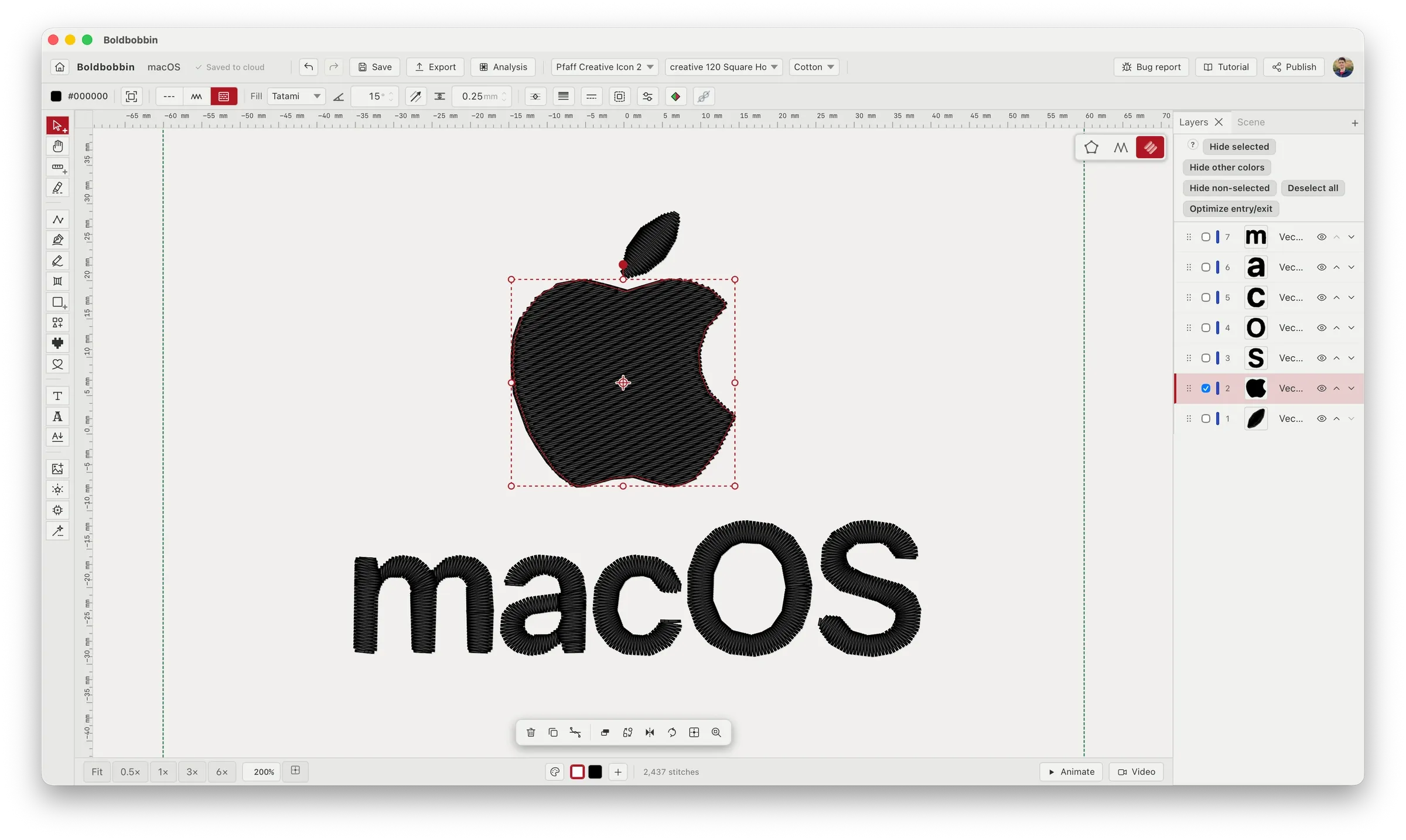
Many embroidery programs cannot run natively on a Mac. Boldbobbin was developed from the start for multiple operating systems, including macOS.

Alexandre Binninger
Founder of Boldbobbin, Ph.D. in Computer Graphics from ETH Zurich
5 min read
If you landed on this page, you’re probably like me: you have both a Mac and an embroidery machine. And you have ideas for designs you want to make yourself! After looking for embroidery software, you find a few names that keep coming up, but there is a catch. They only run on Windows.
So before you can even start creating embroidery, you are reading about virtual machines, Windows licences and how much memory your Mac needs to run another operating system. Not much fun when all you wanted to do was digitize your artwork.
Boldbobbin runs natively on macOS, on both Intel and Apple silicon Macs. So you can just jump in and create your embroidery without installing Windows or paying for Parallels.
Why does embroidery on a Mac so often involve Windows?
Some well-known embroidery programs were developed for Windows. For instance, both Hatch Embroidery and Wilcom EmbroideryStudio explain that their software does not run natively on macOS. Their instructions for Apple silicon Macs use Windows 11 ARM inside Parallels Desktop, which is a virtual machine. Basically, to use them, your Mac needs to run another operating system, which can be very demanding for your computer. On top of that, Parallels Desktop is not free.
To run this software, your Mac needs to run two operating systems
With Parallels, your embroidery software runs inside Windows while macOS is running too. They share your Mac’s memory and processing resources. The virtual machine needs its own allocation, leaving less headroom for your Mac apps and the rest of your work.
That matters when you are editing a design, generating stitches or working with other design software at the same time. You want the editor to respond as you move around your artwork, without having to manage how much RAM Windows gets.
Wilcom’s Mac setup instructions specify at least 32 GB of physical RAM and recommend Parallels Pro.
What does it cost you?
Parallels lists these regular US prices in its own price breakdown. As of the time of writing this article, here is the breakdown:
| Parallels edition | Price |
|---|---|
| Standard | US$99.99/year, or US$219.99 one-time |
| Pro, recommended by Wilcom for its Mac setup | US$119.99/year |
So even if you have already spent a four-figure sum on embroidery software, using that software on your Mac can mean another annual subscription just to run it. And to top it all, Windows is licensed separately.
Boldbobbin runs natively on macOS
Bringing a large, established Windows codebase to other operating systems can be a substantial undertaking, which makes it harder to offer legacy embroidery software on multiple platforms. Boldbobbin was designed from the start to run on Windows, Mac and even in the browser (which makes it usable on Linux and iPad!).
With Boldbobbin, you can install the Mac app and work directly in macOS. You just need to open the .dmg, and drag the app into Applications. Both Intel Macs and Macs with Apple silicon (M-series chips) are fully supported. Boldbobbin has been tested (and developed) on macOS 26.5.2. Older versions likely work as well. You can fully test the compatibility on your own Mac before needing to pay anything.
If you need it, a full installation tutorial is available with step-by-step instructions.
Start on your Mac, continue on your Windows computer
As modern software, Boldbobbin also takes on the flexibility offered by cloud saving. Even if you have multiple computers with different operating systems at different places, Boldbobbin brings you peace of mind.
You can save your project to Boldbobbin’s cloud on your Mac at home, then open it on your Windows computer at work. By signing in to the same account, you can just pick up where you left off. And you can move between the desktop apps and the browser too.
Try it for free!
The best way to check compatibility is to try it on your own computers. Create a simple design with the basic tools on your Mac, save it to the cloud and open it on your other computer. Export it in your machine’s format to check the whole process with your own setup.
The Personal plan is free for personal use, including basic drawing tools, running stitches, satin columns, tatami fills and machine-file exports. Cloud saving is included for up to 10 designs. You can also try Pro tools and preview their results for free. Exporting work made with those tools needs Pro. The plan comparison explains what is included.
And if you’re new to digitizing, you can follow the beginner tutorial to make your first design (no need for Pro features to follow it). There are also guided tutorials inside the app, showing you where to click and how to use the tools as you go.